Open Any Project Instantly with VS Code from Your Terminal
You have VS Code installed on your computer and all you want is to open a file or folder with the editor from the command line. All you need to do is to specify the path of the file or folder that you want to open with the “code” command.

Stop Clicking Around Your File Explorer
If you’re still:
- opening Finder/Explorer
- navigating folders manually
- right-clicking “Open with VS Code”
…you’re wasting seconds that add up fast.
There’s a much cleaner workflow:
code .
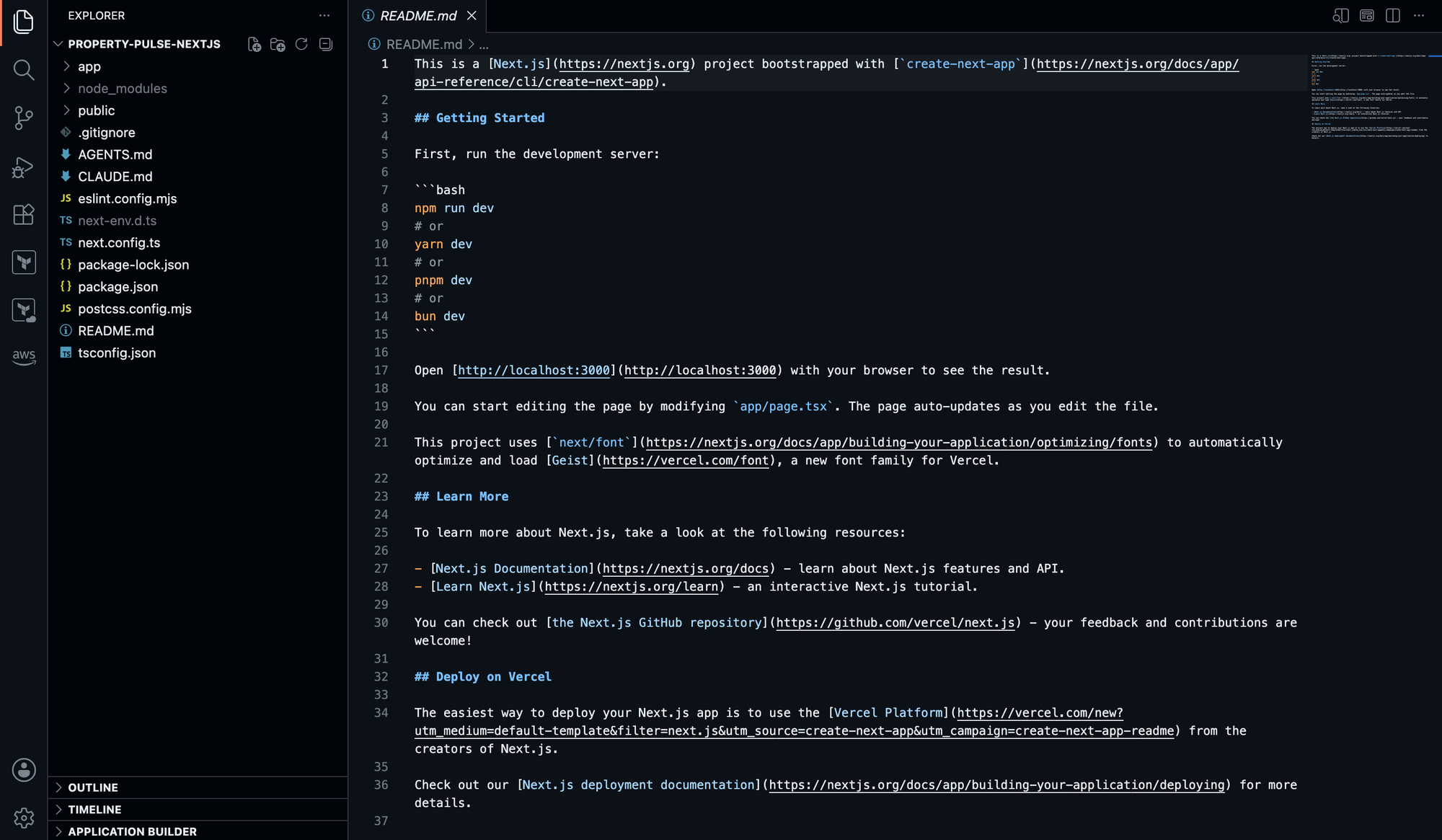
That single command opens your current folder directly in Visual Studio Code.
Once you get used to it, there’s no going back.
The Magic Command
Navigate to any project in your terminal:
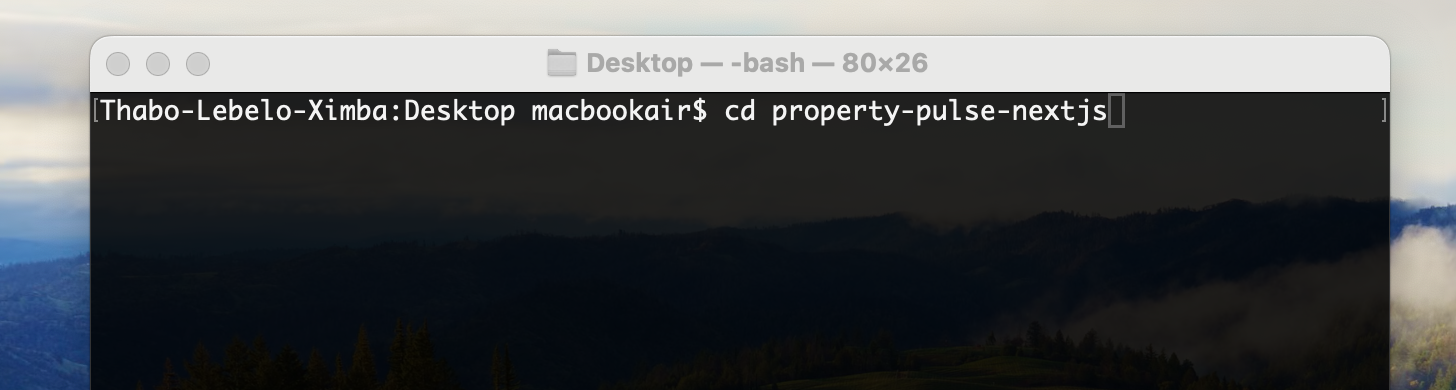
Then run code . :
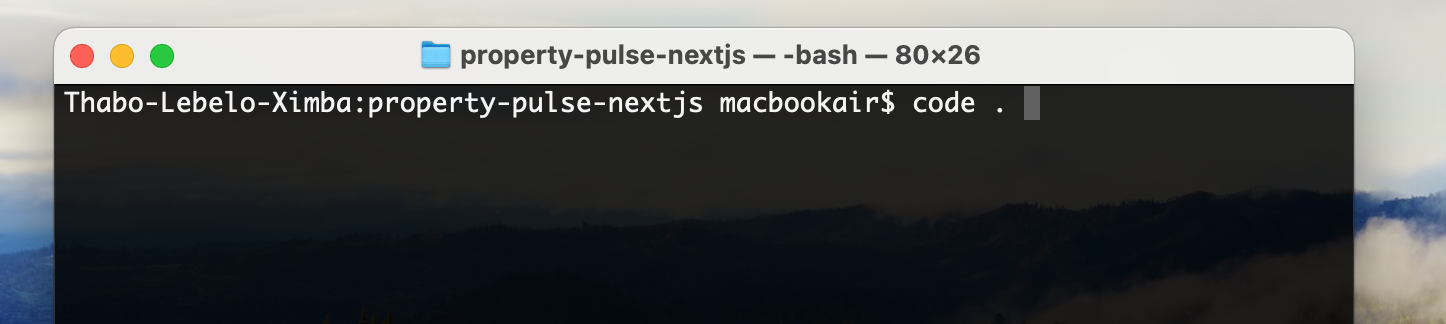
Boom. Your entire project opens instantly in VS Code.
The . simply means:
“Opens the current directory.”
Open Specific Files Too
You can also open individual files directly:
code app.jsOr multiple files:
code index.html styles.cssCode Doesn’t Work
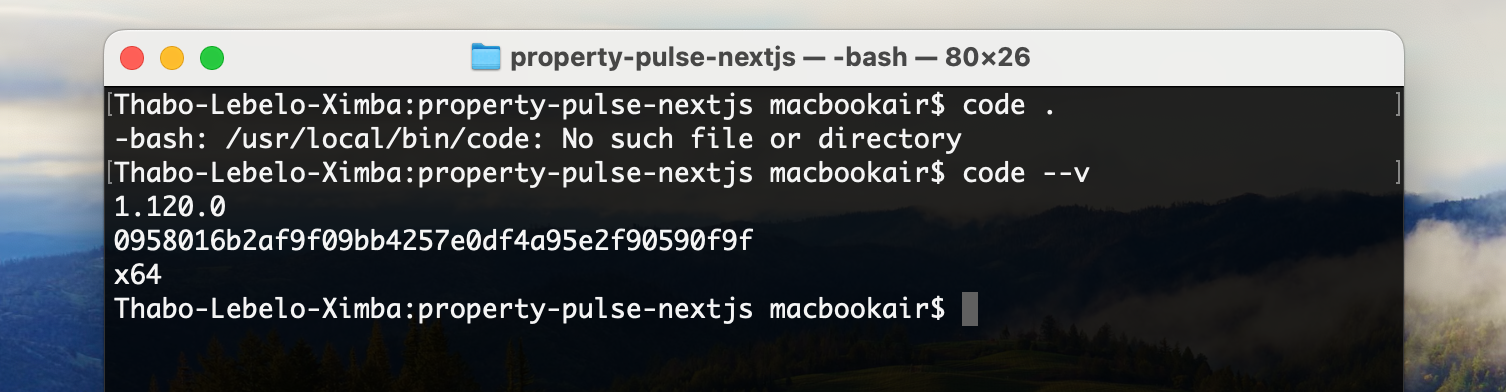
You probably haven’t added VS Code to your system PATH yet.
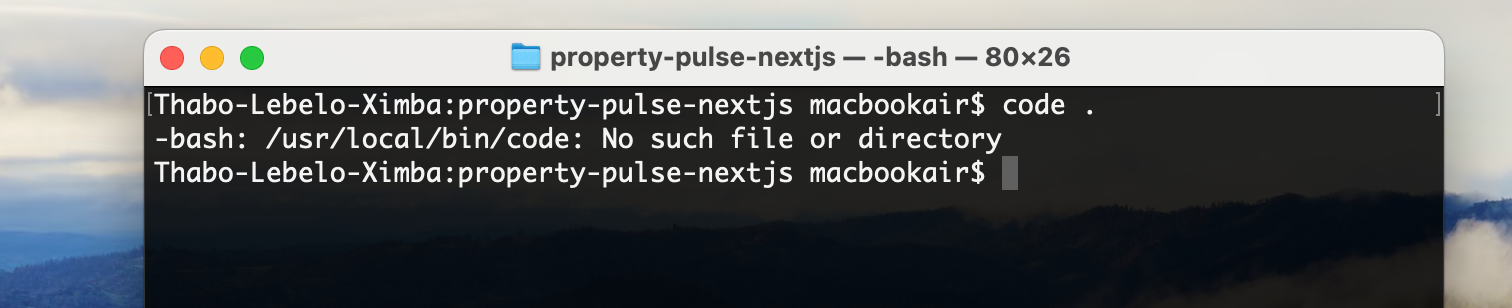
On macOS
- Open Visual Studio Code
- Press
Cmd + Shift + P - Search for
Shell Command: Install 'code' command in PATH

- Press Enter
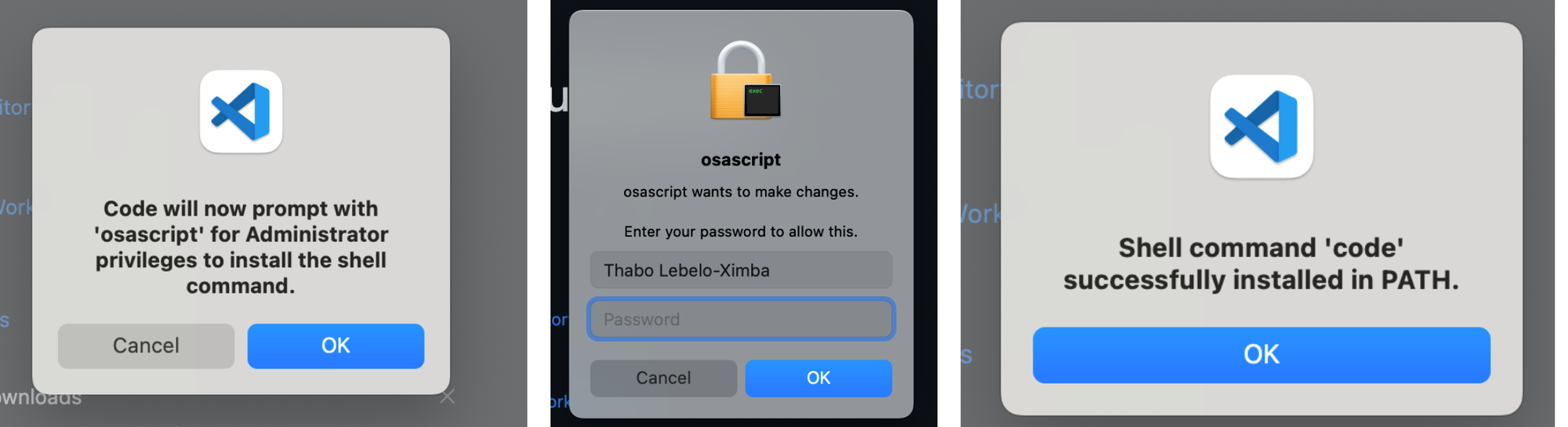
- Just type
code --vin the command line for control. You will see the installed version number.